ExcelAnalyzer helps Excel users build better, error-free spreadsheets. All our applications add an extra tab to the Excel ribbon, giving you formula auditing, dependency tracing, and reporting tools without leaving your workbook.
Before you start
- Excel version: Excel 2016 or later, including Microsoft 365
- Operating system: Windows 10 or later (32-bit and 64-bit)
- .NET Framework: version 4.8 or later — if it’s missing, the installer downloads and installs it automatically
- IT approval: it may be necessary to check with your IT department before installing third-party software
- Need help? Contact support@spreadsheetsoftware.com, use our contact form, or start a live chat
Step 1: Download the setup file
Save the “Setup_ExcelAnalyzer” file on your local drive/computer (for example on your C: or D drive)
Step 2: Close Microsoft Office
Close all open Microsoft Office applications, including Word, Excel, and PowerPoint. This is especially important for the initial installation.
Step 3: Run the installer
Double-click Setup_ExcelAnalyzer.exe and follow the on-screen steps in the ExcelAnalyzer Setup Wizard.
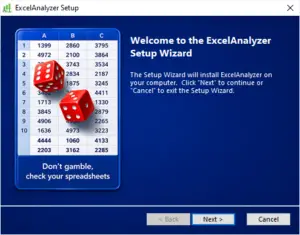
Note: ExcelAnalyzer requires .NET Framework 4.8 or later. If it isn’t already installed, the setup automatically downloads and installs it for you.
Step 4: Accept the license agreement
Step 5: Launch Excel
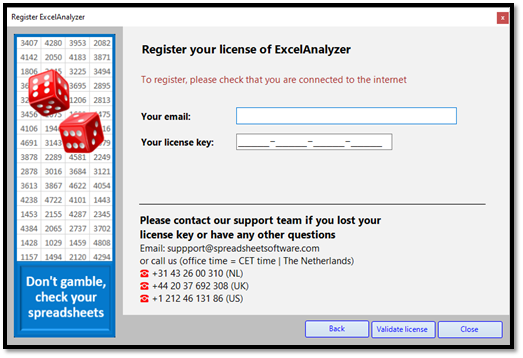
Open Excel. On a new installation, the registration form will appear automatically. If you’re updating an existing installation, your current registration remains valid and no action is needed.
Step 6: Register your license
Choose one of three registration options:
- Register your license key (most common option) — check your inbox for an email from info@spreadsheetsoftware.com containing your license key (check your spam folder if it hasn’t arrived). Enter your email and paste the license key, then click Validate license.
- Register company license server — choose this option if your company runs an ExcelAnalyzer license server, or contact your IT team for guidance.
- Offline registration — choose this option if your computer doesn’t have access to our license server.
Make sure you’re connected to the internet before validating your license.
Lost your license key or have questions? Contact our support team: Email: support@spreadsheetsoftware.com Phone (office hours, CET, The Netherlands):  +31 43 26 00 310 |
  +44 20 37 692 308 |
  +1 212 46 131 86
Step 7: Start using ExcelAnalyzer
Once installation is complete, a new ExcelAnalyzer tab appears in the Excel ribbon, giving you access to Formulas, Dependents, Reports, and Tools.

Need installation help? Contact support@spreadsheetsoftware.com, use our contact form, or start a live chat.
Let us know if you’d like to:
- Extend your trial period — just ask, and we’ll take care of it
- Request additional trial licenses for colleagues who could benefit from a solution like ExcelAnalyzer
- Book a personal (or refresher) web demo
Want to see ExcelAnalyzer in action first? Watch our tutorial videos →
ExcelAnalyzer helps Excel users build better, error-free spreadsheets. All our applications add an extra tab to the Excel ribbon, giving you formula auditing, dependency tracing, and reporting tools without leaving your workbook.
Before you start
- Excel version: Excel 2016 or later, including Microsoft 365
- Operating system: Windows 10 or later (32-bit and 64-bit)
- .NET Framework: version 4.8 or later — if it’s missing, the installer downloads and installs it automatically
- IT approval: it may be necessary to check with your IT department before installing third-party software
- Need help? Contact support@spreadsheetsoftware.com, use our contact form, or start a live chat
Step 1: Download the setup file
Save the “Setup_ExcelAnalyzer” file on your local drive/computer (for example on your C: or D drive)
Step 2: Close Microsoft Office
Close all open Microsoft Office applications, including Word, Excel, and PowerPoint. This is especially important for the initial installation.
Step 3: Run the installer
Double-click Setup_ExcelAnalyzer.exe and follow the on-screen steps in the ExcelAnalyzer Setup Wizard.
Note: ExcelAnalyzer requires .NET Framework 4.8 or later. If it isn’t already installed, the setup automatically downloads and installs it for you.
Step 4: Accept the license agreement
Step 5: Launch Excel
Open Excel. On a new installation, the registration form will appear automatically. If you’re updating an existing installation, your current registration remains valid and no action is needed.
Step 6: Register your license
Choose one of three registration options:
- Register your license key (most common option) — check your inbox for an email from info@spreadsheetsoftware.com containing your license key (check your spam folder if it hasn’t arrived). Enter your email and paste the license key, then click Validate license.
- Register company license server — choose this option if your company runs an ExcelAnalyzer license server, or contact your IT team for guidance.
- Offline registration — choose this option if your computer doesn’t have access to our license server.
Make sure you’re connected to the internet before validating your license.
Lost your license key or have questions? Contact our support team: Email: support@spreadsheetsoftware.com Phone (office hours, CET, The Netherlands): +31 43 26 00 310 | +44 20 37 692 308 | +1 212 46 131 86
Step 7: Start using ExcelAnalyzer
Once installation is complete, a new ExcelAnalyzer tab appears in the Excel ribbon, giving you access to Formulas, Dependents, Reports, and Tools.
Need installation help? Contact support@spreadsheetsoftware.com, use our contact form, or start a live chat.
Let us know if you’d like to:
- Extend your trial period — just ask, and we’ll take care of it
- Request additional trial licenses for colleagues who could benefit from a solution like ExcelAnalyzer
- Book a personal (or refresher) web demo
Want to see ExcelAnalyzer in action first? Watch our tutorial videos →